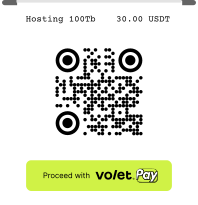
The Volet.com plugin adds crypto payments to an OpenCart 3.x store through Hosted Checkout, a payment page managed by Volet.com. The customer pays on that page, Volet.com confirms the payment and notifies your store, and the funds are credited to your Volet.com account.
Supported version: OpenCart 3.x.
Payment model: custodial only. Funds are credited to your Volet.com account, not sent straight to your own wallet.
Credentials: the plugin uses your Hosted Checkout password, not an API key.
Cost: processing from 0.25% for stablecoin payments and payments from Volet.com accounts, with no setup or monthly fees. The customer pays the blockchain network fee.
Approval: Volet.com reviews each new gateway and its website, usually within a few hours.
Testing: there is no sandbox, so launch checks use small live payments.
Volet.com helps build your global payments
In fiat, crypto, and stablecoins. Via API, hosted checkout, or easy-to-install plugins. Accept, send, and manage funds — all from code.
An OpenCart payment gateway connects a payment service to your store. A payment method is what the customer uses at checkout, such as a card or cryptocurrency. Start with the methods your customers need, then check which ones the provider supports.
You can offer crypto alongside your existing OpenCart payment methods. If you take Visa or Mastercard directly at checkout, keep a separate card processor. Volet.com does not process those card payments directly.
For crypto, decide what customers will pay and where you want the proceeds. USDT, a token designed to track the US dollar, is one possible payment asset. Volet.com supports it on networks such as Tron, Ethereum and BNB Chain; check which networks your checkout shows.
The plugin is custodial, which means Volet.com receives payments on your behalf. It credits them to your Volet.com account immediately without holding any portion in reserve.
You can use the balance for payouts or pay a separate fee to withdraw to a bank account or an external wallet. To receive payments directly in your own wallet, use a separate non-custodial smart contract integration.
Prepare the gateway and your store before installing the payment module.
Verify your Volet.com account. A personal account with full identity and address verification is enough. Use a business account if you accept payments on behalf of a company or expect volumes above personal limits.
Create a Hosted Checkout gateway. In your account dashboard, go to Payment Tools. Volet.com reviews each new gateway and its website before enabling live payments. This usually takes a few hours, and you’ll hear back by email.
Choose payment methods and fee settings. Customers can pay from crypto wallets or Volet.com accounts. Choose who pays the processing fee. If you allow customers to pay more or less than the invoice amount, decide how your store will handle each case.
Set the three checkout URLs. The Success URL and Failed URL bring customers back to your store after a successful or failed payment. Volet.com sends payment status notifications to the Status URL, which your store uses to update orders. Make sure Volet.com can reach that address from outside your network.
Protect the Hosted Checkout password. The plugin uses it to sign payment requests and verify notifications from Volet.com. Enter it only in the plugin settings. Keep it out of public pages and support screenshots. Keep signature verification enabled and check that your server and firewall allow notifications from Volet.com.
Check and back up your OpenCart store. Confirm that you’re running OpenCart 3.x. Back up the store and record its theme and checkout extensions so you or your developer can check the setup after installation.
It has no separate installation guide, so follow the usual process for OpenCart 3.x payment extensions. If you can, test it on a copy of your store first.
In the OpenCart admin, go to Extensions → Installer, click Upload and select the plugin package. The built-in installer accepts OpenCart Modification (OCMOD) packages with filenames ending in .ocmod.zip and does not require FTP.
If the package includes an OCMOD file, go to Extensions → Modifications and click Refresh to apply them.
Go to Extensions → Extensions, select Payments, click Install next to the Volet.com method, then click Edit.
Enter the requested Hosted Checkout details in the extension settings. The plugin uses your Hosted Checkout password to sign payment requests.
Choose the order status for each payment result.
Set Status to Enabled and save the settings.
Place a low-value test order and check that the Volet.com option appears at checkout.
If Volet.com doesn't appear at checkout, check that the extension is enabled and review its settings and your store's checkout configuration.
If you still have issues send a short write-up to [email protected]. Our team will respond shortly and help you with the setup.
Pro tips
Record the plugin version and settings you changed. Keep passwords out of the change log. Assign someone to maintain the integration after updates to OpenCart, the theme or the plugin.
The plugin gives you the gateway; the rules that release an order are yours. It does not filter duplicate notifications or check for notifications that never arrived, so plan those checks with your developer before launch.
Follow one order through Hosted Checkout
A successful OpenCart payment integration connects a store order to a confirmed payment and then to fulfilment. Keep those events separate when testing.
Suppose a customer buys a software licence from your OpenCart store and chooses crypto.
OpenCart creates the order. The store sends the customer to Hosted Checkout.
The customer pays the invoice. They select a supported asset and network, review the invoice and send the payment.
Volet.com sends two status notifications. It notifies your Status URL when the transaction is created. It sends a second notification once the payment has the required blockchain confirmations and is complete.
OpenCart updates the matching order. The store verifies the notification and applies the order status you chose for that payment result.
Check when the order is ready for fulfilment. Record the OpenCart order reference, payment reference and resulting order status. Check the completed payment against the expected amount and currency. Confirm that the order moves to the status your team uses to allow delivery.
Pro tips
The customer's return page is not proof of payment. The customer may close the browser, lose their connection or return before confirmation. OpenCart must still show the correct order status.
Release the order only after payment is complete. Ask your developer to verify notification signatures and check which order status each payment result sets. Keep the order awaiting payment while the transaction is new or pending.
Handle incomplete payments without duplicate delivery
Decide how your store will handle incomplete payments and repeated notifications. The plugin cannot make the decisions below for you.
Keep the order awaiting payment until you verify the result. A closed tab alone tells you neither that the payment succeeded nor that it failed.
The invoice is valid for 60 minutes without conversion and 15 minutes with conversion.
A late payment may go back to the customer or, in some cases, be credited to you.
Volet.com may not send it again if your Status URL was unreachable or returned an error.
Check the payment in your Volet.com account, fix the Status URL and update the order manually.
Check the first attempt before asking the customer to pay again.
Use the order ID to check whether the store has already shipped the order or issued the licence.
Process the repeat notification without delivering the order again.
Check the invoice and your underpayment or overpayment settings before releasing the order.
Record any manual decision.
Stop automatic fulfilment and investigate with the transaction details.
Do not promise that recovery is possible.
Link all payment attempts to the same order.
Check whether an earlier attempt succeeded before asking the customer to pay again.
For example, a customer may pay, see a slow return page and press the payment button again. Your support team should identify the existing payment first. A new checkout page does not establish that the first attempt failed.
Keep the original payment records so support can investigate exceptions.
Volet.com has no separate test environment, so use small live payments before launch. You can ask the sales team for a live demo — see the widget at the bottom of this article.
To verify order updates, run a payment through your own store.
Run a low-value test order. Check that Volet.com appears at checkout, the redirect works and the invoice shows the right details. Complete the payment. Verify that the Status URL receives the notification, the signature is valid, OpenCart updates the order and the customer sees the confirmation. Confirm that you fulfil the order once.
Test interruptions and exceptions. Close the browser before returning to the store. Check an unpaid or cancelled attempt and an expired invoice. Ask your developer to review duplicate and missed notifications. Walk through the wrong-network procedure without sending funds.
The sender pays the blockchain network fee. Processing, conversion or withdrawal fees may also apply to test payments and refunds. Label test orders so they stay out of sales reports.
Run another checkout check after updates that affect the theme, checkout extension or payment module. A previously successful installation does not establish that a later configuration still works.
Prepare refunds, records and support
A completed crypto transfer cannot be reversed the way a card payment can be charged back. Handle refunds in your Volet.com account and follow your refund policy and applicable consumer protection requirements. If you need help with the refund process, contact Volet.com support.
Agree on a refund process before launch. Decide who approves refunds, verifies the recipient address and network, covers fees and links each refund to its original order. Treat address changes as valid only after verifying the request.
Keep records so you can match payments to orders. Record the gross sale, processing fee, credited amount, settlement currency, provider transaction reference and any refund reference. The status notification includes the original amount, credited amount, settlement currency and Volet.com transaction ID. Record any bank withdrawal separately.
Give support a short procedure. Find the order and its payment attempt. Check the verified payment status, then decide whether to fulfil the order, wait or escalate. If you set a notification email for the gateway, Volet.com sends transaction emails only to that address. You can use a shared support or accounting inbox.
Accept USDT, USDC, and leading crypto tokens worldwide
Start with the crypto payment gateway — instant settlements and fees from 0.25%